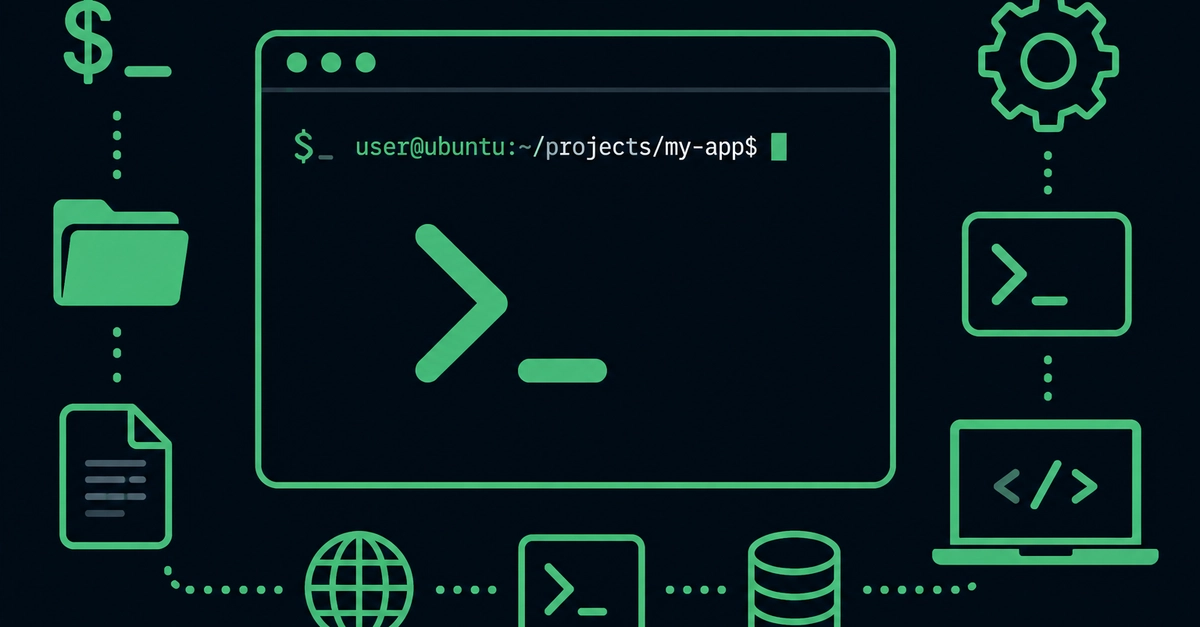
For years, the command line has been this mystical, slightly intimidating portal for many in tech. We’ve all seen it: the stark white text on a black background, the blinking cursor, and that little voice whispering, “Don’t break anything.” We expected… well, more of the same, I suppose. Another set of arcane incantations for system administrators. But here’s the thing: that perception is about to be completely, gloriously shattered. Because the command line? It’s not just a tool anymore. It’s the fundamental platform shift powering the next wave of innovation, especially in AI.
Think of it like this: we’ve been enjoying the convenience of graphical user interfaces (GUIs) for decades. They’re like beautifully designed, easy-to-navigate shopping malls. But what if I told you that the real, raw power—the workshops, the factories, the places where things are actually built and transformed—has always been just outside the mall’s manicured lawns?
That’s the command line. And with the explosion of AI tools, many of which are CLI-first or CLI-only, it’s no longer a niche skill; it’s becoming the Rosetta Stone for interacting with the most powerful computational engines we’ve ever created.
From Fear to Flight: Rewriting Your Terminal Narrative
That initial twinge of anxiety when facing an empty prompt is totally normal. It’s like staring at a blank canvas. But the story you’re telling yourself from “I’m going to mess something up” to “I’m going to take off with this” is the most critical upgrade you can make. The command line, whether it’s Bash (your go-to on Windows or Linux) or Zsh (the darling of macOS), isn’t a hostile environment. It’s an incredibly efficient, potent way to communicate directly with your operating system.
Why the sudden urgency? Because the command line offers unparalleled control. There are tasks, especially in data science, machine learning, and cloud orchestration, that you simply can’t do (or can only do painfully slowly) through a GUI. Typing is fast, yes, but the real magic is in automation and the sheer scale of operations you can manage. These small gains per task don’t just add up; they multiply into an entirely new level of productivity. Plus, cloud computing and many cutting-edge AI tools? They live and breathe the command line. Compatibility is also a huge win; your commands will run on virtually any machine, a stark contrast to the often-fussy nature of GUI applications.
Decoding Your Digital Address: The Prompt
The first thing you’ll notice is the prompt. It’s your digital address, a status report, and your invitation to interact. Typically, it looks something like this:
currentuser@hostname:workingdirectoryUID
On Windows Subsystem for Linux (WSL), you might see:
your-name@machine-name:/mnt/c/Users/your-name$
And on macOS:
your-name@machine-name ~ %
The crucial part here is that $ or % at the end. That little symbol is your privilege indicator.
The Power of Roots (and Why You Should Avoid Them)
That $ or % signifies standard user privileges. Seeing a # instead? That means you’re operating as root, the super-user. And while root access unlocks the ultimate control, it’s also like walking around with a loaded weapon – incredibly powerful, but one slip-up can cause catastrophic damage. For day-to-day operations, stick to the $ or %. If a command requires more power, you’ll get a “Permission denied” message. That’s your cue to use sudo (short for “substitute user do”).
Sudo is your temporary passport to administrative privileges. It’ll ask for your password, and for a brief window (usually 5 minutes), your commands run with root-level access. It’s the controlled way to wield higher power without living in the danger zone.
Navigating the Digital Forest: Paths and Directories
Your prompt also shows your absolute path – your location relative to the file system’s root. Think of paths like a set of GPS coordinates. Each / (the universally loved path separator) is like taking a turn into a new directory. If you’re coming from Windows, you might be used to \, but / is the standard across the web and Unix-like systems.
If you see ~ in your prompt, you’re in your home directory. The tilde (~) is a shortcut, a magical portal back home with cd ~ (change directory). No ruby slippers needed!
For those on WSL, you’ll see paths like /mnt/c/Users/your-name. While you can access your Windows files, it’s generally best practice to cd ~ into your Linux home directory and stay there when working with Linux tools and AI environments. Keep it clean, keep it focused.
Speaking the Machine’s Language: Commands, Options, and Arguments
At its core, the command line is about submitting commands. The general syntax is elegantly simple: command -options arguments.
Options modify a command’s behavior. Single letters, like -lh, can often be combined. Longer, descriptive options, like --help, usually stand alone.
Let’s try some: clear cleans your screen. Easy.
clear
echo just prints text:
echo hello
Want to see a calendar with extra flair?
ncal -3hMj
Or get disk usage in a human-friendly format?
df --human-readable --total --type=ext4
Stuck? Most commands have a --help option. Type clear --help. It’s your command-line Google.
But what if --help doesn’t work? That’s when you might be dealing with a built-in command, like history. These are part of the shell itself. For those, you’ll use help history, info history, or man history (manual page).
To figure out if a command is a standalone program or a shell built-in, use the type command:
type clear
type history
This distinction is more than just academic; it affects how you get help and how quickly commands are processed. Built-ins are faster because the shell doesn’t have to go find and load a separate program.
The AI Connection: Why This Matters NOW
We’re standing at the precipice of an AI renaissance, and the command line is the scaffolding. Many of the most exciting AI development tools, from vector databases to model deployment frameworks, are designed with CLIs as their primary interface. They offer fine-grained control, scriptability for complex workflows, and the raw power needed to manage massive datasets and computational resources.
Consider this: a sophisticated AI training pipeline might involve downloading datasets, preprocessing them, configuring hyperparameters, launching distributed training jobs, and then deploying models. Doing this via a GUI would be a Herculean task. But via the command line? It becomes a matter of scripting and automation – efficient, repeatable, and scalable.
This isn’t just about making developers more productive; it’s about democratizing access to powerful AI capabilities. As more advanced AI models become accessible, often through APIs and command-line interfaces, proficiency with the terminal becomes less of a “nice-to-have” and more of a fundamental requirement for anyone serious about building or utilizing the next generation of intelligent systems.
So, next time you see that blinking cursor, don’t feel trepidation. Feel the potential. Feel the power. It’s your direct line to the future.