Cloud shares are convenient. Too convenient.
The Ghost in the Machine: Unsecured Azure Files
The convenience of cloud storage, particularly for file sharing, often overshadows its inherent security risks. It’s a tightrope walk: you need accessibility, but you absolutely cannot afford an open door. Take the scenario presented: a finance team’s payroll files, a treasure trove of sensitive data, accidentally flung open to the public internet. This isn’t a hypothetical nightmare; it’s a chillingly plausible consequence of a single misconfigured setting. This isn’t about a new feature; it’s about shoring up the fundamental architecture of how we store and share data in the cloud, specifically within Microsoft’s Azure ecosystem.
Azure Files: More Than Just a Shared Drive
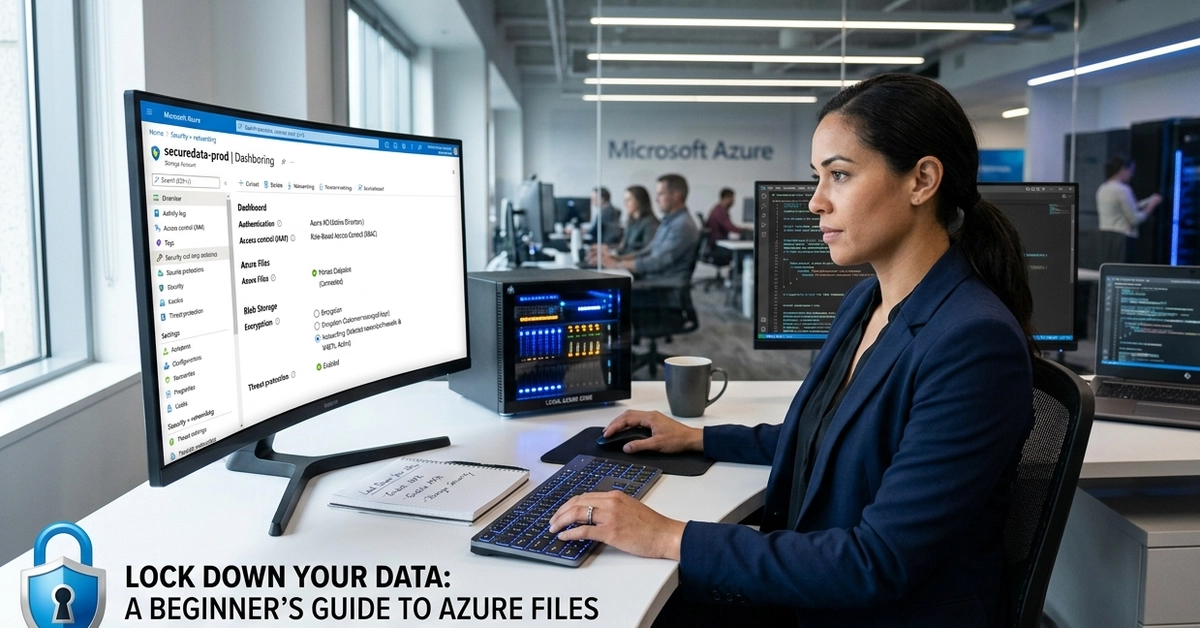
Think of Azure Files as your company’s shared network drive, but instead of being tethered to an on-premises server room, it lives in the cloud. It’s accessible via the SMB protocol, allowing multiple users and virtual machines to mount and interact with files simultaneously. This flexibility, however, is precisely where the vulnerabilities lie if not managed with a vigilant hand. The core of the problem isn’t that Azure Storage is inherently insecure; it’s that user configuration is the ultimate arbiter of its security posture. A few unchecked boxes, a neglected subnet setting, and suddenly your sensitive documents are broadcasting themselves to the digital ether.
Building Your Digital Fortress: A Layered Approach
The guide outlines a practical, hands-on approach to securing Azure Files, essentially building a layered defense. It’s not about a single magic bullet, but a series of interlocking shields: from automated backups acting as a digital time machine to network-level blockades that act as your bouncers.
Tasks Overview: - Create a dedicated storage account for file shares. - Configure file shares and directories for organization. - Implement snapshots and practice file restoration. - Restrict access to specific virtual networks and subnets.
The Genesis of Security: Creating Your Storage Account
The journey begins with the foundational element: the storage account. Here, the devil is truly in the details. When creating a new storage account in the Azure portal, the naming conventions alone demand precision – 3 to 24 lowercase characters, no spaces or hyphens. It’s a small hurdle, but it sets the tone. The real divergence comes in the performance and redundancy settings.
NOTE: Premium = SSD-backed, low-latency storage. Use it when your app needs fast file access. Standard (HDD) is cheaper for less time-sensitive files. ZRS = Zone-Redundant Storage: your data is copied across 3 availability zones in the same region, protecting against a single data center going down.
Opting for Premium performance means opting for speed, crucial for applications demanding rapid file access. Choosing Zone-Redundant Storage (ZRS) is where the real resilience kicks in; your data is mirrored across multiple availability zones within a region, providing strong protection against localized data center failures. This isn’t just about preventing downtime; it’s about safeguarding data integrity against a broad spectrum of failures.
Files and Folders: Organizing Your Digital Assets
Once the storage account is established, the next step is to create the actual file share. This is where you’ll house your shared data. Within this share, creating directories – like the ‘finance’ example shown – is critical for logical organization. Imagine a chaotic filing cabinet versus a meticulously labeled one; the latter is exponentially easier to manage and, crucially, secure. Uploading files into these structured directories is the final step in setting up the basic share.
The Safety Net: Snapshots and Restoration
Accidental deletion or overwriting is a common IT headache, amplified in the cloud. Azure Files addresses this with snapshots. A snapshot is essentially a read-only, point-in-time copy of your file share. It’s your ‘save point.’ If a file goes rogue – deleted, corrupted, or maliciously altered – you can roll back to a previous snapshot and restore it. This process, while seemingly straightforward, is a critical line of defense, providing an auditable trail and a mechanism for recovery that can avert significant data loss.
Restoring a file involves navigating to the snapshot, locating the desired file, and initiating a restore operation, often specifying a new name for the restored version to avoid overwriting the original – a subtle but important distinction for maintaining data integrity during recovery.
The Invisible Wall: Network Access Restrictions
This is where the architecture truly shifts from simple sharing to strong security. Restricting access to specific virtual networks and subnets is paramount. A Virtual Network (VNet) in Azure acts as your private cloud network, analogous to your on-premises office network. A subnet is a segment within that VNet. By configuring Service Endpoints for Microsoft.Storage on a subnet, you’re essentially telling Azure that only resources within that specific subnet are allowed to communicate with your storage account.
This is a significant architectural shift. Instead of relying solely on identity-based access controls (who can access what), you’re implementing network-level perimeter security. You’re drawing a digital fence around your storage. When you then configure the storage account’s networking settings to permit access only from selected virtual networks and IP addresses, you create a powerful, multi-layered security posture. It moves beyond user credentials to network segmentation, making it far more difficult for unauthorized entities to even reach your data, let alone access it.
Why This Matters: Beyond the Beginner’s Guide
The steps detailed in this guide aren’t just for beginners; they represent fundamental security practices that should be embedded in any cloud deployment. The ease with which a misconfiguration can lead to a data breach, as highlighted by the finance team scenario, underscores the need for diligent application of these controls. The shift towards Zero Trust architectures, where no user or device is trusted by default, makes network segmentation and stringent access controls non-negotiable. Azure Files security, when implemented correctly, becomes a cornerstone of a compliant and secure cloud strategy, preventing costly breaches and maintaining user trust.
🧬 Related Insights
- Read more: Gemini API: From Zero to Chatbot in 15 Minutes Flat
- Read more: Gateway API on Kind: Local Testing Without the Hassle
Frequently Asked Questions
What is Azure Files? Azure Files is a cloud-based file share service accessible via the industry-standard Server Message Block (SMB) protocol, similar to a traditional network drive.
How do snapshots protect my data? Snapshots create read-only, point-in-time copies of your file share, allowing you to restore files if they are accidentally deleted or overwritten.
Can I restrict access to my Azure Files from anywhere on the internet? Yes, by configuring network security settings in your Azure Storage account, you can restrict access to specific virtual networks and IP addresses, preventing broad public exposure.