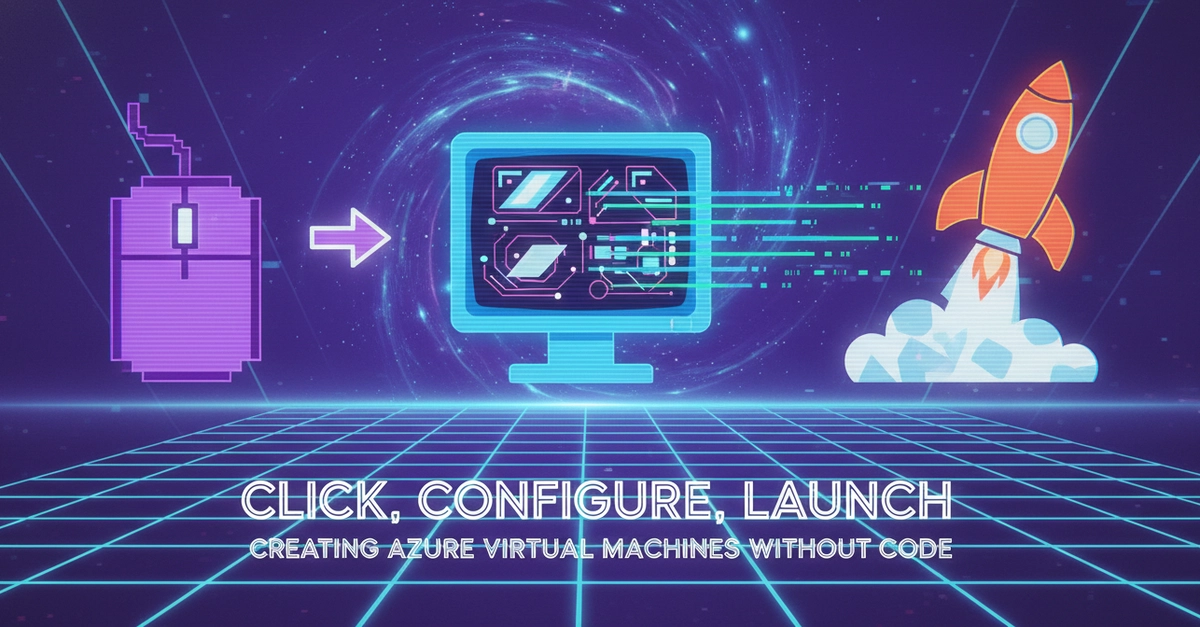
The cursor hovered, a digital phantom over the blinking ‘Create’ button.
Let’s be honest, when the word “cloud” first started getting bandied about like some mystical elixir, the promise was automation. Speed. Efficiency. The kind of stuff that makes engineers nod sagely and VCs open their wallets. Fast forward a decade or so, and we’re still sitting here, clicking through graphical interfaces to spin up a virtual machine on Azure. It’s like using a fax machine in the age of instant messaging – functional, sure, but hardly the revolution we were sold.
Look, a virtual machine (VM) is just a computer inside another computer, running in someone else’s data center. You partition off some processing power, some memory (RAM, if you’re feeling nostalgic for hardware terms), a bit of storage, and slap an operating system on it. Want to run Windows on your Mac? VM. Need a dedicated Linux box for a quick test? VM. It’s a flexible tool, no doubt about it.
Before you can even think about clicking around in the Azure Portal, you need two things: an Azure account (sign up for the free trial, they’re practically giving away bits of the cloud these days) and, crucially, a Resource Group. Think of this as a digital shoebox. It’s where Azure throws all the related bits and bobs for a project so you don’t lose them in the sprawling digital attic.
Here’s the play-by-play Microsoft wants you to follow. It’s less a “guide” and more a digital scavenger hunt:
First, find “Resource groups.” Then, hit the big “+ Create” button. Give your shoebox a name. Pick a region – and for the love of all that’s silicon, stick with that region for this project. Don’t go scattering your digital belongings across continents unless you have a very specific, and frankly, masochistic reason.
Validate it. Create it. Done. Easy peasy.
Now, the main event: Virtual Machines. Search for it, click “+ Create,” and then “Virtual machine.” You land on the “Basics” tab. This is where the real clicking begins.
Project Details: Select your subscription. Pick that shoebox – your resource group. Simple enough.
Instance Details: Here’s where you name your virtual computer. It needs a name, like any good piece of digital real estate. Pick a region (again, use the one you picked for the resource group, unless you’re feeling adventurous). Availability Options? If you’re on a free trial, you’re probably not worried about keeping your single VM running through a cosmic ray shower, so “No Infrastructure Redundancy Required” is your friend. Security Type: “Trusted Launch Virtual Machine” sounds fancy; go with it. Image: For this walkthrough, it’s Windows 10. But you could have picked Linux, or any number of specialized OS images if you knew what you were doing.
Administrator Account: Every computer needs a login. So, set a username and password. Don’t make it “admin/password,” please. Even the GUI deserves better than that.
Inbound Port Rules: This is where you decide what traffic is allowed in. HTTP (port 80) and RDP (port 3389) are the defaults here, letting you browse the web on your VM and connect to it remotely. Essential, if a bit blunt.
Licensing: Check the box. You’re agreeing to Microsoft’s terms. They probably are too.
Monitoring Tab: “Disable” Boot Diagnostics. Unless you want your local machine to log every reboot of your cloud computer – which, why?
Review. Create. Wait. Go to resource.
And here’s where the real world bites back. You’ve got your VM. Now you need to actually connect to it. Navigate to networking or essentials. Find the IP Address. Click it. See “Idle Timeout”? It’s probably set to a laughably short four minutes. Change it to 30 minutes. Why? Because the cloud giveth, and the cloud forceth disconnects if you dare to take a sip of coffee. Apply.
Click “Connect.” Download the RDP file. If you’re on macOS, download the Windows app from the App Store first. Because macOS.
And there you have it. A VM, spun up with clicks and confirmations, sitting in the cloud, ready for… well, whatever you intended to do with it.
Who’s Actually Making Money Here?
This entire process, the GUI clicks, the step-by-step guide, it’s all designed to onboard new users, yes, but more importantly, to keep you in the Azure ecosystem. Every click, every resource group, every virtual machine deployed accrues cost. Microsoft makes its money on the usage, on the compute hours, the storage, the data transfer. The easier they make it for you to click around and deploy resources, the more resources you’re likely to deploy, and the more money flows into Redmond. It’s a well-oiled machine, and you, my friend, are the grease.
Why Bother With the GUI When CLI Exists?
This is the million-dollar question, isn’t it? Because the vast majority of users don’t think like sysadmins. They think like application developers or project managers. They want to see what they’re doing. The GUI, for all its inefficiency and potential for repetitive strain injury, offers visual confirmation. It’s a gateway drug into cloud computing. Once you’re comfortable clicking your way through, you might eventually graduate to the Azure CLI or ARM templates, which is where the real power (and efficiency) lies. But for the initial plunge? The GUI is the familiar handrail.
For example, on a MacBook, you can have your main operating system, and run Windows or Linux inside a virtual machine at the same time, while having its own storage, processing power, memory (RAM), and operating system.
This whole exercise is a proof to the persistent human need for a visual map, even when a well-documented set of directions (the CLI) would get you there faster and more reliably. But hey, if clicking through screens is your jam, Azure’s got you covered. Just don’t complain when your connection times out after four minutes.
🧬 Related Insights
- Read more: Telegram’s Secret Cloud Storage Unleashed
- Read more: From Laptop Spark to Live Lambda: Quarkus, Vanilla JS, AWS Lambda, and DynamoDB’s Zero-Friction Blast-Off
Frequently Asked Questions
What are the prerequisites for deploying an Azure VM via the GUI?
Two essential prerequisites are an active Azure account and a Resource Group to organize your cloud resources.
Is it possible to connect to an Azure VM from macOS using RDP?
Yes, but macOS doesn’t support RDP files natively. You’ll need to download the Windows App from the Apple App Store first.
How can I prevent my Azure VM session from disconnecting due to inactivity?
Adjust the ‘Idle Timeout’ setting for the VM’s IP address, extending it from the default 4 minutes to a longer duration like 30 minutes.