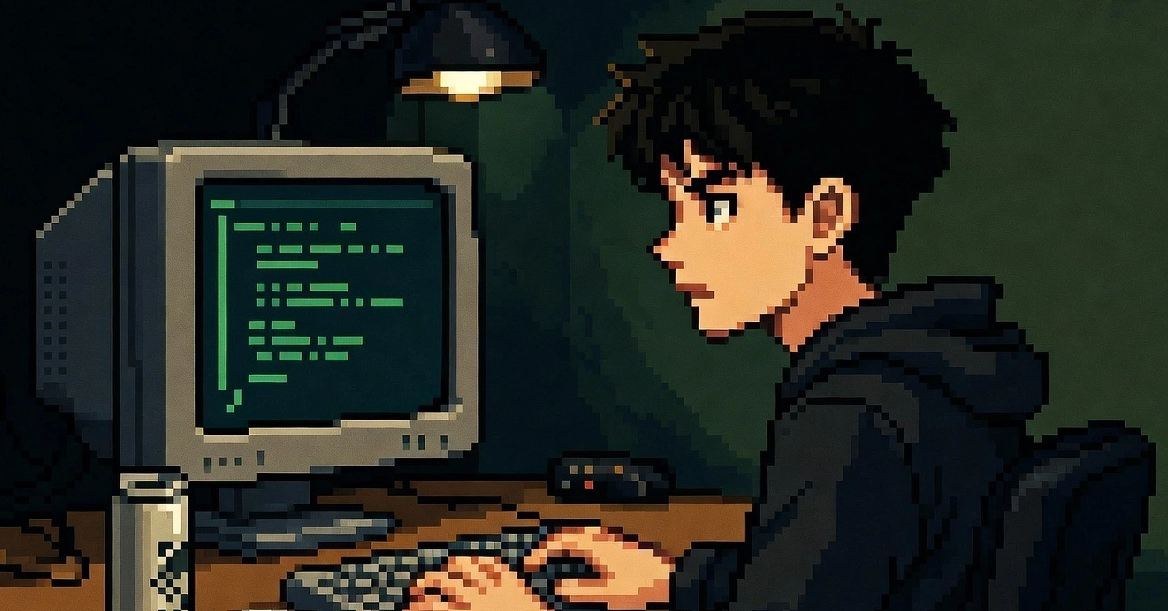
The glow of the monitor reflected in the half-empty coffee mug as I scrolled through yet another breathless announcement about an AI assistant that could “do it all.” Yeah, right. Twenty years in this circus, and I’ve learned one thing: if it sounds too good to be true, it probably is. And this latest wave of AI assistants, while undeniably clever in their own digital sandbox, are about to hit a very familiar, very analog wall: your desktop.
Look, the folks pushing these new AI assistants are patting themselves on the back for making them capable of reading files, spitting out shell commands, and delegating the heavy lifting of actual coding to, well, other AIs like Claude Code or Codex. Impressive, if you’re still impressed by a calculator that can also do long division. But the moment a workflow nudged its way beyond the command line and into a real, tangible desktop application? Poof. The magic evaporated.
A browser tab needed a click. A web page demanded a scroll. A form field required actual, human-like text input. The AI could nail the complex logic, the complex algorithms, the elegant code – and then get completely flummoxed by the final two seconds of interacting with the user interface. It felt less like genuine automation and more like a fancy puppet show where the strings kept snapping.
The Real Bottleneck Isn’t Code, It’s Clicks
The hard part, it turns out, wasn’t the generative AI itself. That’s becoming almost table stakes. No, the true chasm was between the AI knowing what needed to happen and being able to actually operate the window sitting right in front of me. This gap manifested in ways that were small, infuriating, and utterly predictable to anyone who’s actually spent time wrestling with automation.
Think about it: a browser tab needs Ctrl+L, then a URL paste. A crucial web page has no friendly accessibility selectors, forcing a screenshot as a fallback. A long form necessitates scrolling within a specific pane, not just blindly scrolling the whole damn screen. And then there’s the pièce de résistance: the final publish button, still stubbornly requiring a visible, clickable element.
So, what the assistant really needed wasn’t another loop to generate more code. It needed a way to safely, reliably, and intelligently interact with the actual desktop. And that, my friends, is where the real money, and the real challenge, lies.
Building the Bridge: Local First, Observe Always
What’s fascinating is that the fix wasn’t some convoluted cloud-based solution. It was surprisingly… local. The author here added a modest suite of desktop tools, pairing the assistant with a companion agent running right there on the same machine. Suddenly, the assistant wasn’t just a disembodied brain; it had hands, albeit virtual ones.
This new setup allows the assistant to list windows, focus specific applications, and crucially, find accessible controls when they’re available. If not? It captures a screenshot, inspects what’s visible, and then, and only then, makes a click. Hotkeys like Ctrl+L are back on the table. Scrolling happens in the right place. The AI can even set input values directly.
The golden rule here, the one that separates actual progress from digital noise, is brutally simple: observe first, then act. If selectors exist, use them. If they’re absent, well, you look at what’s there, and you act based on what you see. This principle is more critical than any fancy new algorithm because it stops desktop automation from devolving into random pixel-guessing – a surefire way to lose your data and your sanity.
Before this local loop, the assistant was like a brilliant strategist who could plan the perfect battle but had no soldiers to deploy. Now, it can not only plan but also execute the messy, often tedious, final steps that actually constitute finishing real work. The workflow loop looks something like this:
inspect window → focus app → locate control or capture screenshot → act → verify
It sounds minor, but it fundamentally redefines what an “assistant” can actually do. It’s no longer confined to the sterile environment of code and terminals. It can tackle the messy, frustrating last mile where actual productivity lives and dies.
Who’s Making Money Here?
This isn’t about a hosted browser service or some clunky remote desktop relay. And thank goodness for that. Desktop control involves the sensitive stuff: open apps, visible windows, clipboard contents, local sessions, personal accounts. Keeping it all local is paramount for privacy and security. Plus, it’s faster. No need to ship gigabytes of UI events to a remote server for processing.
This local-first approach perfectly aligns with the broader philosophy of projects like CliGate. The gateway, the assistant, the execution engines, and now this desktop control layer – they all coexist on the same box. This isn’t just about making the AI smarter; it’s about making it less incomplete. A lot of otherwise brilliant AI workflows stumble precisely because they can’t bridge the gap between digital thought and physical (or at least, desktop) action.
So, for all you builders out there in the local AI tooling space, ask yourselves: Where does your automation still choke? At the terminal? The API? Or is it stuck, like so many before it, at the frustratingly analog barrier of the desktop? The answer to that question is where the next wave of innovation – and likely, profit – will be found.
Is Desktop Control the Next AI Frontier?
This move towards integrating desktop control isn’t just a technical upgrade; it’s a necessary evolution for AI assistants aiming to be genuinely useful in the real world. It tackles the practical limitations that have plagued automation efforts for decades. If an AI can’t interact with the applications you use every day, its utility is severely capped. The race is on to see which companies can effectively bridge this gap, offering assistants that can not only think but also do across the entire spectrum of a user’s digital environment.
Why This Matters for Developers
For developers, this signifies a shift. Your AI coding assistants are evolving from mere code generators to more holistic workflow partners. If your team is building or integrating AI tools, understanding these limitations and the solutions emerging is key. It means thinking about how your AI interacts with your IDE, your CI/CD pipelines, and yes, even your project management software. The future isn’t just about smarter code; it’s about smarter, more integrated actions.
🧬 Related Insights
- Read more: Free QR Code Generator: 24 Types, No Sign-Up, No Expiry [Built from Scratch]
- Read more: Amazon ECS Adds Receipt Modes: What It Means for Your Apps
Frequently Asked Questions
What does ‘desktop control layer’ mean for AI assistants?
It means the AI can now directly interact with your computer’s graphical interface – clicking buttons, typing text, scrolling windows, and executing commands within desktop applications, not just in code terminals.
Will this desktop control make AI assistants take my job?
Not directly. It makes them more efficient at tasks that previously required human intervention. This could automate repetitive UI-based tasks, freeing up humans for more complex problem-solving and creative work, rather than replacing entire roles.
Is keeping desktop control local more secure?
Yes. Keeping sensitive operations like interacting with open apps, local sessions, and personal accounts on your own machine, rather than sending them to a remote server, significantly enhances privacy and security.