This isn’t about new software launches or flashy feature announcements. This is about the quiet, often unseen, architectural shifts in a developer’s daily workflow. It’s about reclaiming precious mental cycles, about reducing that friction that gnaws at productivity when you’re deep in the zone. For a significant chunk of us—those who live across multiple Git repositories, often under different personas—this news means one less thing to manually switch. It means that when you git push from your personal repo, it uses your personal credentials, and when you gh pr list from your work directory, it’s automatically leveraging your corporate GitHub token.
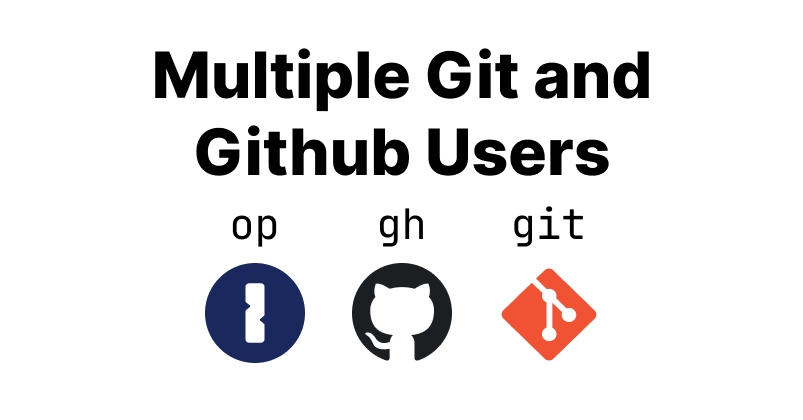
It’s the kind of granular control that used to require arcane shell scripts or a deep dive into .gitconfig permutations. Now, it’s about orchestrating existing tools—the ubiquitous Git CLI, the GitHub CLI (gh), and a password manager like 1Password—to create an environment that adapts to your context. The ‘how’ is deceptively simple, a proof to well-designed CLIs that expose powerful configuration hooks.
Why Does This Matter for Developers?
The core problem this solves is identity management within your development environment. Think about it: you’re cloning a personal project from your GitHub account, and an hour later, you’re tackling a bug fix in a corporate repository on a different GitHub account. Without proper configuration, your Git commits might bear the wrong name and email, or worse, your GitHub CLI commands could fail because they’re authenticated as the wrong user. This isn’t just an inconvenience; it’s a source of subtle errors and wasted time. The approach outlined here use Git’s includeIf directive, a surprisingly elegant feature that allows conditional loading of configuration files based on directory paths. It’s a powerful mechanism that developers have often overlooked, buried within the .gitconfig man pages. The setup essentially says: ‘If I’m in a directory that gitdir recognizes as a Git repository under ~/oss/, then load ~/.gitconfig-work. Otherwise, use the default settings.’ This creates a clean, path-based segregation of Git identities.
Here’s a glimpse into that foundational .gitconfig trick:
[user]
name = Sean Boult
email = [email protected]
[includeIf "gitdir:~/oss/"]
path = ~/.gitconfig-work
This snippet, seemingly small, is the linchpin. It’s the declarative way to tell Git, ‘When in Rome, do as the Romans do (or rather, use the work config).’ The magic extends beyond just user.name and user.email. It also handles SSH keys, crucial for secure Git operations. By configuring ~/.ssh/config to use specific IdentityFiles based on the host, and then instructing git to use those specific keys via sshCommand in the work config, you ensure that even the underlying SSH connection is context-aware.
The 1Password Orchestration
Where this setup truly shines for the modern developer is in its integration with tools like 1Password. Authenticating the GitHub CLI (gh) often involves Personal Access Tokens (PATs). Managing multiple PATs across different GitHub accounts can be a nightmare, requiring manual copying and pasting, or worse, storing them insecurely. The beauty of integrating 1Password, particularly its CLI (op), is that it allows for dynamic token retrieval. The idea is to configure the gh CLI, likely through environment variables or its own configuration, to use a PAT stored in 1Password. Crucially, this integration can be made context-aware. When you’re in your ~/oss directory, the op command is set up to fetch the work PAT, and outside of it, it defaults to your personal PAT. This isn’t just about storing secrets; it’s about making those secrets contextually available to the tools that need them. It’s the difference between a secure vault and a dynamically provisioned security pass.
This dynamic provisioning is a subtle but profound architectural shift. Instead of static credentials, we’re moving towards systems that understand context and retrieve appropriate, temporary credentials. It’s a pattern that’s becoming increasingly relevant in cloud-native environments, and seeing it applied at the developer workstation level is a powerful indicator of where things are heading.
Once the repo is under
~/oss/, Git uses: your workuser.name/user.email- your work SSH key
This simple statement encapsulates the entire promise: a developer can move between different work contexts without a second thought, because the tooling has been intelligently configured to adapt. The underlying mechanics are less about a single, monolithic solution and more about the interoperability of well-designed, single-purpose tools. Git’s configuration system, the GitHub CLI’s authentication mechanisms, and a strong secrets manager like 1Password are brought together to solve a deeply human problem: context switching.